
Tracument uses your client's signature, stored in their Matter, to generate the authorization for each Full Service Request. Your client signs once, and the signature is reused on every request for that client.
Option 1: Request the signature through Tracument (fastest)
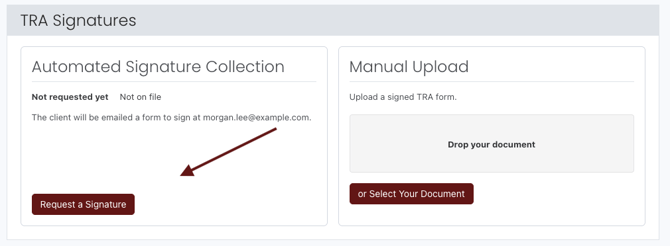
- Open the client's Matter and navigate to the Administration tab. Make sure their Name, Date of Birth, and email address are filled in.
- Click Request a Signature. Tracument emails the authorization to your client to sign online.
- When your client signs, the signature loads into the Matter automatically.
Collecting many signatures at once
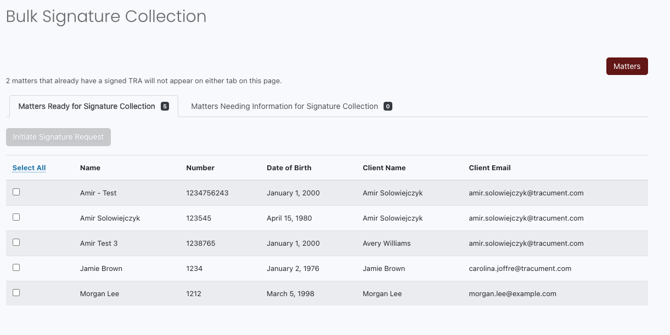
Use Bulk Signature Collection on the main Matters screen:
- Matters Ready for Signature Collection lists matters with everything needed to send a request.
- Matters Needing Information for Signature Collection lists matters missing details. Fill in the blanks and click Save, and they move to the ready tab.
Option 2: Upload a signed paper form
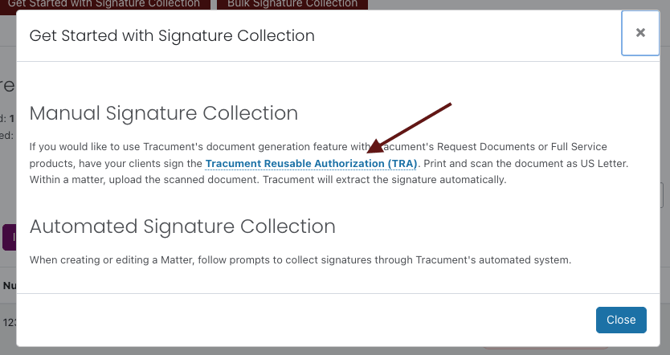
- Go to Matters and click the red Get Started with Signature Collection
- Click the link within the pop-up box to download the Tracument Reusable Authorization (TRA) form.
- Your client signs inside the signature box, in blue ink if possible. The signature must not touch the lines.
- Scan the page straight, letter size, in colour, at 200 dpi or higher.
- Open the client's Matter and drop the scanned form into the Manual Signature area. The signature appears over the drop area.
- Click Save.
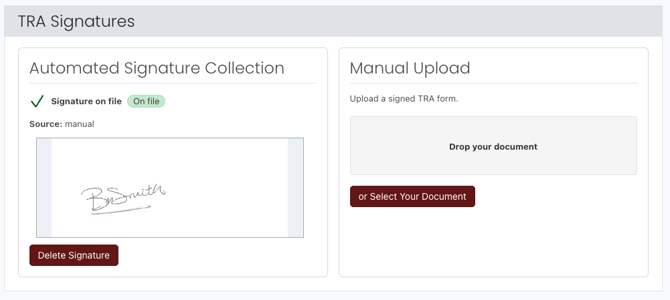
If the whole page shows instead of just the signature
The form was scanned crooked, or the client signed outside the box. Rescan the page straight, or have the client sign again inside the box.
Getting the signature right the first time
Signature problems are the most common reason requests are returned. Make sure the signature is:
- clear and dark, ideally blue ink
- fully inside the box, not touching the lines
- not too small and not too large for the box
- loaded into the Matter. Do not attach the TRA form to the request as a document
Common questions
My client already signed for a previous request. Do they need to sign again? No. Once the signature is in the Matter, it is reused for every new request for that client.
The signature was accepted before, so why was it rejected this time? We check every request individually before it is sent. The rejection reason explains what needs to change for this request.
Can my client sign digitally? Yes, through Request a Signature.
Related articles: “When someone else signs for your client” · “Using a custom authorization” · “Why was my request rejected, and how do I fix it?”