
When a request is complete
A request is marked Received when either:
- the records are uploaded, or
- the record holder's notice that there are no records (or no records in your date range, or no patient on file) is uploaded.
You are notified either way.
Option 1: download from the request
- Open the request.
- Under Requested Documents, click the red file name.
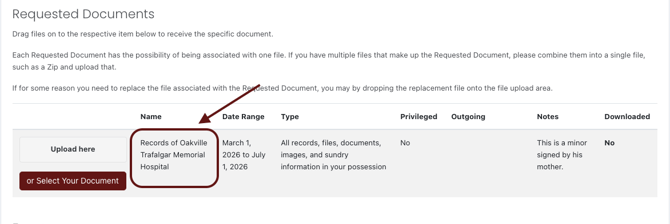
Option 2: download from Incoming Documents
- Go to Activities → Incoming Documents.
- Set Type to Requested Documents and click Filter.
- Click the purple download arrow.
- The Downloaded column changes to Yes.
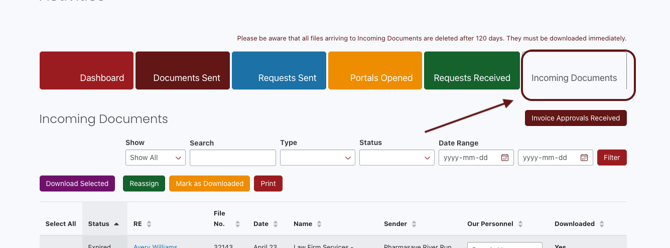
Download within 120 days
Records expire after 120 days and cannot be uploaded again. After that, the records would need to be requested, and paid for, again.
If an invoice came with the records
The records become available as soon as you approve the invoice (see “Approving or rejecting an invoice”).
Common questions
I got a notification that records were received, but there are no records. The record holder may have sent a notice saying they have no records for this person or date range. That notice completes the request. If you believe records exist, see “Problems with the records you received”.
Related articles: “Problems with the records you received” · “Approving or rejecting an invoice”